Start & build


Launch Services
Overview
Chart your path to success with specialized services.Implementation Project Management
Experts to ensure you launch on time and under budget.Solution Architecture
Seasoned advisors to help you best design your store.Data Migration & Optimization
Expertise on a clean and clear path to migrating your data.Enterprise Launch Package
Personal training on how to set up and launch your BigCommerce Store.

Professional Services Blog Series
Get to know our teams and how they support your success in this Q&A series.



Create your new website.
See if the BigCommerce platform is a good fit for your business.
No credit card required.

Written by
Chris NanningaThe BigCommerce B2B Buyer Portal provides a fully featured B2B shopping experience out of the box for all B2B Edition stores. The open source nature of the Buyer Portal also gives you the flexibility to make this experience wholly your own, enhancing the React application with any custom UI or functionality needed for your storefront.
In this simple tutorial, we’ll start an exploration of common development patterns in the Buyer Portal app by examining routing configuration and navigation. This walkthrough will involve adding boilerplate for a new Overview page.
Prerequisites
This tutorial will require:
B2B Edition: You will need a BigCommerce store with B2B Edition enabled on a Stencil storefront.
Node.js: Ensure you have Node.js version >=22.16.0. It is recommended to use nvm to manage your Node installation.
Yarn Package Manager: The Buyer Portal uses the Yarn package manager, which you can install globally using npm: npm i -g yarn.
A custom fork of the Buyer Portal, running in a local dev environment. See Customizing the B2B Buyer Portal: First Steps for the steps involved.
Once you’ve forked the Buyer Portal repo, have it running in a local environment, and have updated your B2B Edition scripts per the steps in our previous guide, you’re ready for the steps ahead!
React Router
The Buyer Portal utilizes the popular React Router to handle routing and navigation. As a single-page app, the Buyer Portal specifically uses a hash-based routing strategy, with the current URL hash indicating which page route is currently open.
For example, visiting the Invoices page within the portal will result in #/invoice being appended to the current URL.
The built-in Buyer Portal code takes care of the wiring responsible for the React Router implementation, such that we only need to edit routing configuration and create our own component in order to add a page.
Permissions
NOTE: Throughout this tutorial, all file paths are relative to app/storefront/src, the root of the main Buyer Portal application.
All routes in the Buyer Portal are controlled by specific permissions; users without the correct permissions will not see the route in the Buyer Portal nav or be able to browse to it.
Therefore, the first step in creating our new page will be to define which permissions are required in order to view it. shared/routes/config.ts contains the main configuration for this, with two different types of permissions:
Role-based permissions are based on a user’s role, such as Senior Buyer, Junior Buyer, or custom roles.
Permission “codes” are more granular, based on the specific permissions that are granted to roles in the B2B Edition backend.
We need to define both for our new page, and we’ll mimic the loosest permissions that existing pages implement.
1. Open the file shared/routes/config.ts.
The various permissions are defined in this file. Role-based permissions are defined in legacyPermissions, while permission “codes” are defined in newPermissions.
You may note that the values in newPermissions reference values from a b2bPermissionsMap containing the various permission strings (such as “get_shopping_lists”, “create_quote”, “get_invoice_detail”, etc). We might consider defining our own custom permission with the B2B Edition API and incorporating that permission into the map. But for our simple overview page, we’ll simply make use of the getShoppingListPermission value as the most permissive scenario.
2. Update legacyPermissions to add an overviewPermissions key containing all possible roles, mimicking ordersPermissions.
3. Update newPermissions to add an overviewPermissionCodes key with the shopping lists permission code.
These permission values end up getting imported in shared/routeList.ts. Let’s complete this step by adding our new values to the destructuring statements there.
4. Open shared/routeList.ts and update the destructuring statements for legacyPermissions and newPermissions to include the overview values.
```js
const {
  overviewPermissions,
  ...
} = legacyPermissions;
const {
  overviewPermissionCodes,
  ...
} = newPermissions;
```
Page Component and Route Config
It’s time to define the routing config for our new Overview page. The code we’ll be editing in this section collects routing details in simple configuration objects without concerning itself with the details of the React Router implementation. If you’re interested in those details, take a look at the following:
App.tsxwraps the main layout in<HashRouter>.components/layout/B3RenderRouter.tsxrenders a<Route>for each entry from the config we’ll be editing next.
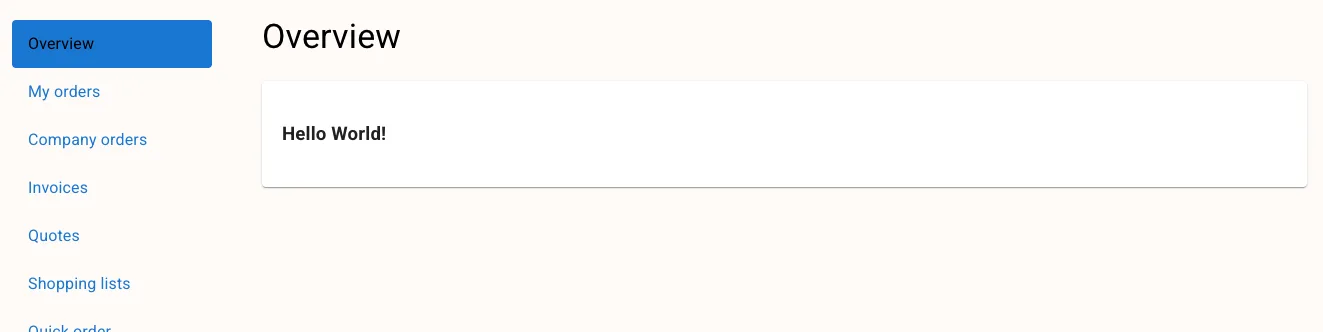
Before editing the routing config, we need the actual React component that represents our unique page. Let’s create a simple “Hello World” component.
1. Create the file pages/Overview/index.tsx with the following content.
We’re using the first of a few components we’ll utilize from Material UI (Card in this case). While these UI patterns aren’t the focus of the feature we’re building here, you can explore the library further in the official documentation.
A final housekeeping task before updating our routing config is to create a new locale string for the title of our page. While we’re not making full use of localization in this tutorial, our routing config requires an explicit reference to a locale string for the Buyer Portal nav menu.
2. Edit lib/lang/locales/en.json to add a new string to the config object.
Now we’re ready to establish our route’s main config.
3. Edit shared/routeList.ts, which contains the primary configuration for all Buyer Portal page routes. Add the Overview config as shown.
This config includes the following:
pathdefines the hash portion of the URL path that will correspond with the page.isMenuItemdeclares that this page should appear in the nav menu.permissionsandpermissionCodesdeclare what role-based and code-based permissions apply to this page, from our previously handled config.isTokenLogindeclares that a user must be logged in to access this page.idLangidentifies the locale string key used to look up the locale-specific page title.
The final piece of configuration we must take care of is connecting the route to the actual React component that renders the page. This config lives in a separate location.
4. Edit shared/routes/index.tsx to add a “lazy” import of the Overview component and add the association to routesMap.
5. Log in as a valid B2B user in the storefront running your custom Buyer Portal and verify that the Overview page renders.
Navigating Between Pages
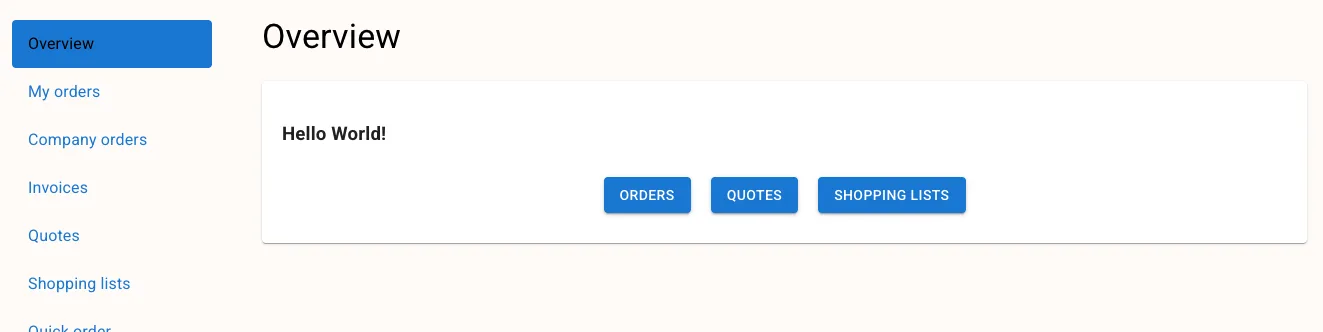
As a final exploration of our core routing concepts, we’ll add buttons to the Overview page that link to the Orders, Quotes, and Shopping List pages.
The best practice for navigating between pages within the Buyer Portal is to utilize the setOpenPage function that is passed as a prop to every page route component. (See B3RenderRouter to observe where this prop is passed.)
The necessary steps for our Overview page will involve accepting this prop, importing the HeadlessRoutes constants that identify unique paths for navigation, and implementing an onClick on each button to call setOpenPage with the appropriate params.
1. Edit pages/Overview/index.tsx to import a couple more Material UI components and the appropriate types/constants for navigation.
2. Add an interface for the component’s props and edit the component signature to destructure setOpenPage from these props.
3. Add a line destructuring the constants we’re concerned with from HeadlessRoutes.
4. Add the three buttons.
Note that each call to setOpenPage includes isOpen, which simply indicates that the Buyer Portal modal should be open for this navigation action, and openUrl with the appropriate route constant.
5. Navigate to your Overview page and verify that the buttons function correctly.
Final Considerations
Our initial proof of concept is complete, but there are a couple of other odds and/or ends that are likely to be beneficial:
Just as we used constants from
HeadlessRoutesto navigate to standard Buyer Portal pages, we want to expose a similar constant for the new Overview page. This is handled inconstants/index.ts.The Overview page should probably be the default page displayed when the Buyer Portal is first opened. This is handled in
utils/b3CheckPermissions/b2bPermissionPath.ts.
View the Example Code for these final updates.
Taking It Further
You may notice that we’ve explored B2B user permissions from the standpoint of accessing an entire page route, but we’ve included navigation buttons in Overview without regard for the permissions required for those pages. A user might have the appropriate permission to view the Overview page but not to navigate to the Quotes page.
Examine the use of the validatePermissionWithComparisonType function (defined in utils/b3CheckPermissions/check.ts) for programmatic checks of a user’s permissions. This can be used with the appropriate permission codes to conditionally render our buttons.
The final word
In this simple tutorial, we explored the following concepts in the BigCommerce B2B Buyer Portal:
Page permissions configuration
Defining page routes and mapping them to components
Programmatically navigating between pages
With the completion of our Overview proof of concept, you should now be familiar with the techniques required to start building your own custom pages within the Buyer Portal.
Build more than code. Build connections.
From edge cases to workarounds, learn from developers solving things in real time.