Start & build


Launch Services
Overview
Chart your path to success with specialized services.Implementation Project Management
Experts to ensure you launch on time and under budget.Solution Architecture
Seasoned advisors to help you best design your store.Data Migration & Optimization
Expertise on a clean and clear path to migrating your data.Enterprise Launch Package
Personal training on how to set up and launch your BigCommerce Store.

Professional Services Blog Series
Get to know our teams and how they support your success in this Q&A series.


C15t Meets Catalyst: Consent Management Made Easy

Create your store and start selling today.
Create your new website.
See if the BigCommerce platform is a good fit for your business.
No credit card required.

Written by
Andrea DaoLast month, our team had the exciting opportunity to attend the 2025 Next.js Conf in San Francisco. The conference featured some amazing tools and features of Next.js, and we’re excited to share that some of these ideas are part of Catalyst.
One talk that caught my eye was “Why Your Consent Banner Should be in Your Bundle” presented by Christopher Burns. In his presentation, Burns talks about how implementing consent banners often forces a site to sacrifice performance for compliance. He then introduces the c15t library, a new standard for redefining consent management. He goes on to show that c15t reduces a banner’s time to load in his benchmark for various cookie management tools.
What’s so exciting? Our engineers recently released a consent manager in the Catalyst 1.3 release that features c15t. This provides a comprehensive solution for General Data Protection Regulation (GDPR), California Consumer Privacy Act (CCPA), and other privacy regulation compliance.
In this article, we’ll first explain the basic features that c15t provides out of the box. We’ll then show what we’ve customized in Catalyst by incorporating parts of the Catalyst implementation into the demo. You can find the full Catalyst implementation in the canary branch.
Prerequisites
Clone the c15t-demo github repository and install dependencies.
What is c15t?
C15t is an open source framework for managing user consent and privacy compliance in modern web apps. It’s designed for a great experience: native REACT components, easy-to-integrate tooling, and painless configuration. What’s more – the banner loads quickly, scripts that don’t match user preferences are automatically blocked, and it integrates with Next.js apps like Catalyst.
Basic Usage
Let’s look at the functionality that c15t provides out of the box. Start by following the steps below:
Open the repository you cloned in the Prerequisites section.
Check out the
mainbranch.
On this branch, we’ve followed the Quickstart Guide to install and configure c15t. In your layout.tsx file, you’ll see the JSX components that c15t provides. We’ve imported the consent banner and manager dialog component and wrapped it inside the ConsentManagerProvider wrapper, which manages global state for consent.
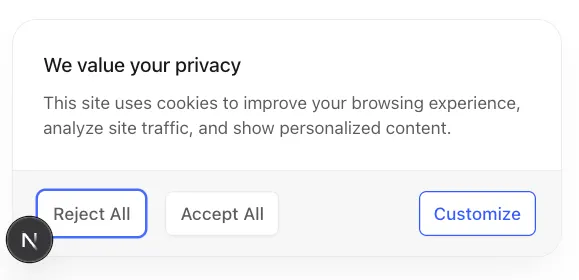
Start your development server (npm run dev) and visit the app homepage. You should see a banner that offers to accept, reject, or customize cookie preferences.
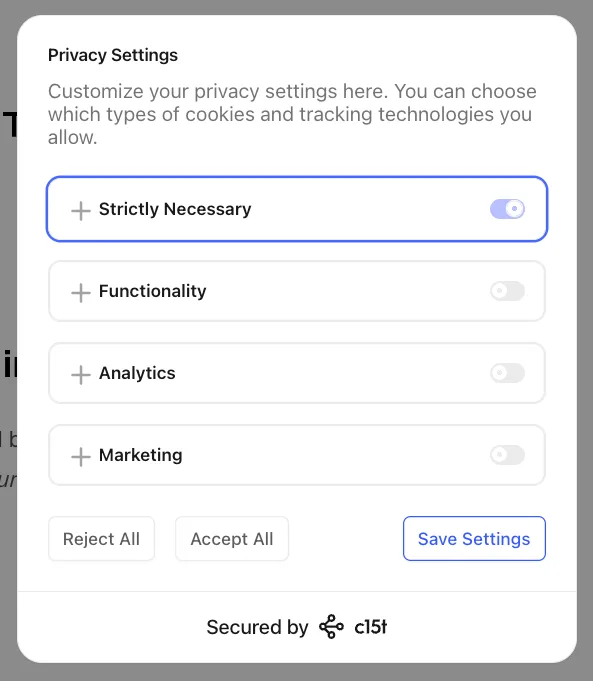
Click “Customize” in the banner to open the manager dialog. The dialog shows the consent categories that we input into the ConsentManagerProvider in the layout.tsx file.
After you choose your preferences, c15t will persist the consent. The c15t library provides different options for storing user preferences. At the moment, the demo stores preferences in the browser’s local storage, which is the offline mode available out of the box.
Let’s check that consent gets stored. Click the “Functionality” category in the dialog and save the settings. If you open up the browser’s local storage, you should see the c15t-consent key with the saved preference. The banner and dialog also close.
To clear consent, you can clear the site data (which empties local storage) and refresh the page. The banner should re-appear.
Customized Components
So far, we’ve used c15t components in their most basic form. But c15t also lets you customize your banner by bringing in your own components and using theme keys for styling.
Check out the ui-components branch. Here, we’ve included VIBES components into our banner to style the button and checkbox and some theme keys for styling. The static text for the components uses a hook from the next-intl library, which we’ll explore in the next section.
If you visit your homepage, you should see the following.
Note that Catalyst imports these banner components out-of-the-box, but includes custom Tailwind configuration:
Multilanguage Translations
C15t supports built-in i18n to translate the static text in its banner components. With this configuration, you would pass translations to the translations object in the ConsentManagerProvider wrapper in the layout.tsx file.
However, in Catalyst, we apply translations to our components through the next-intl configuration instead. In our components, the static text comes from the JSON files inside the messages folder. The ConsentManager key inside the JSON file contains the static strings for the consent manager components. The banner components we implement then reference the ConsentManager key from the translation files.
To check this out, make sure you’re still on the same ui-components branch and open the /messages/en.json file. Change the value of the ConsentManager.CookieBanner.title key. You should see the banner title in the component change:
The full next-intl implementation in Catalyst includes locale detection, translations for other languages, and other features. For supported languages, this allows you to change the locale from your language selector and see the appropriate translations:
For more info, see the Static Translations overview in the Catalyst documentation.
Consent Storage
So far, we’ve been storing consent preferences in browser local storage, an option that c15t provides out of the box.
However, in Catalyst, preferences are stored in browser cookies. In this custom implementation, we’ve added custom endpoint handlers to the ConsentManagerProvider configuration to show consent banners, set consent preferences, and verify consent status through cookies. With our implementation, you could read cookies on the server, not just the client.
To see this in action, check out the consent-storage branch.
Click “Customize” to open the manager dialog. Check the “Functionality” category and save the settings. If you open up the browser’s cookie storage, you should see the cookie named c15t-consent with the saved preference.
As before, you can clear the site data to delete the cookies. When you refresh the page, the banner should re-appear.
Script Loader
C15t provides a script loader feature that lets you load scripts based on consent. To use this feature, pass your scripts as a prop into a ClientSideOptionsProvider wrapper. C15t will load the scripts under the category that matches the user preference (in addition to scripts under the necessary consent category).
To see the script loader in action, check out the script-loader branch. On this branch, we’ve used sample script data with the ClientSideOptionsProvider wrapper we configured. We’ve included a sample script for each consent category, which logs the name of its consent category into the browser console.
Click “Customize” to open the manager dialog. Check the “Functionality” category and save the settings. If you open up the browser console, you should see that the scripts under the “functionality” and “necessary” category were executed. If you delete the site data, only the necessary script executes:
In our demo code, the script-data.ts file contains sample data that you might receive when you make a fetch call to the Storefront GraphQL API for script data. Our scriptsTransformer.ts file then returns the sample script data in the correct format.
This is similar to the Catalyst implementation, but note that the consent manager in a Catalyst app is fully integrated with BigCommerce’s Script Manager. In Catalyst, your storefront scripts are first fetched through the Storefront GraphQL API. The scriptsTransformer.ts file then extracts and transforms the GraphQL response data into the format that c15t requires.
In Catalyst, there also is feature parity with Stencil in how scripts are categorized and loaded. The scriptsTransformer.ts file maps BigCommerce consent categories to the categories that c15t requires so that:
If the user has not provided any consent preference, Catalyst only loads
ESSENTIALandUNKNOWNscripts.If the user has "Accepted All" consent categories, all scripts load
If the user has "Rejected All" consent categories, only
ESSENTIALandUNKNOWNscripts load.
What’s Next?
Check out the full Catalyst implementation of the consent manager on the canary branch! You’ll need to enable the cookie consent tracking in your Control Panel to be able to see the banner on your Catalyst storefront.
For more information, check out the Catalyst Consent Management documentation.
Learn more about c15t by watching Christopher Burns’s talk, Why Your Consent Banner Should be in Your Bundle, from this year’s Next.js Conf, checking out the c15t docs, and joining the support channels they offer.
Build more than code. Build connections.
From edge cases to workarounds, learn from developers solving things in real time.