Start & build


Launch Services
Overview
Chart your path to success with specialized services.Implementation Project Management
Experts to ensure you launch on time and under budget.Solution Architecture
Seasoned advisors to help you best design your store.Data Migration & Optimization
Expertise on a clean and clear path to migrating your data.Enterprise Launch Package
Personal training on how to set up and launch your BigCommerce Store.

Professional Services Blog Series
Get to know our teams and how they support your success in this Q&A series.


Customizing the B2B Buyer Portal: First Steps

Create your store and start selling today.
Create your new website.
See if the BigCommerce platform is a good fit for your business.
No credit card required.

Written by
Chris NanningaThe B2B Buyer Portal is the default storefront experience for the shopper-facing features of BigCommerce B2B Edition, providing the UX layer that allows B2B users to submit quotes, manage shopping lists, view and pay invoices, and more.
The built-in, BigCommerce-hosted Buyer Portal provides a rich user experience out of the box, and the look and feel of your own Buyer Portal can be customized using built-in B2B Edition settings. However, for those cases that require highly unique B2B workflows, or integration scenarios with specific third-party services, the Buyer Portal application code is entirely open source, giving you the flexibility to fork and customize your own B2B shopper experience without the need to start from scratch.
In this walkthrough, we’ll look at the steps necessary to swap out the native Buyer Portal experience with your own, enabling you to get started with your own customizations.
Prerequisites
This walkthrough will require you to have the following:
B2B Edition: You will need a BigCommerce store with B2B Edition enabled.
The Cornerstone Theme: For the smoothest experience in this simple tutorial, you’ll want to have a Stencil storefront with the default Cornerstone theme active.
Node.js: Ensure you have Node.js version >=22.16.0. It is recommended to use nvm to manage your Node installation.
Yarn Package Manager: The Buyer Portal uses the Yarn package manager, which you can install globally using npm: npm i -g yarn.
Under the Hood
The Buyer Portal is a client-side React application that integrates with your BigCommerce storefront, driving the user interface for the B2B-specific areas of the frontend. In some cases, such as to offer the “Add to Quote” call to action on a product detail page, the Buyer Portal injects new content onto existing pages within the store’s theme.
In this walkthrough, we’ll focus on getting set up with a Buyer Portal fork integrated with a Stencil storefront. This involves the following major steps:
Fork/clone the Buyer Portal repository
Run the Buyer Portal in a local environment
Update your B2B Edition settings and storefront scripts to point to your own Buyer Portal
When you’re ready to take your custom Buyer Portal to production, the final step is to build and host your custom code. We’ll touch on this step after the main walkthrough.
Other Storefronts
The Buyer Portal can be used with custom headless storefronts as well, and an experimental integration is available for Catalyst, the composable BigCommerce theme built on Next.js. The same Buyer Portal source repo is used in these scenarios, but the steps for connecting it with your storefront are a little different.
Fork and Run the Buyer Portal
The first step for customizing on the Buyer Portal is to fork or clone the source GitHub repository.
1. Fork the repository: Use the “Fork” action near the top of the GitHub repository page to create your own GitHub repo, or skip to the next step to clone the repo directly.
2. Clone the project: Obtain the clone URL from your own GitHub repo or the main Buyer Portal repo:
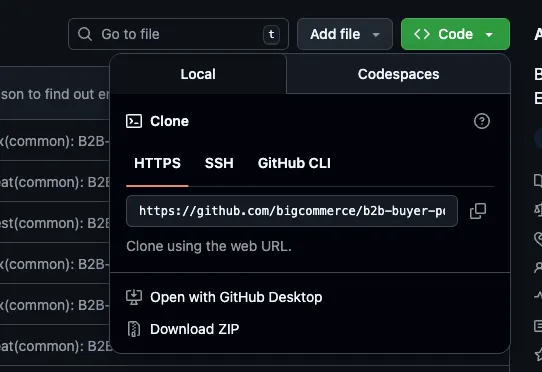
Then clone the repository in your local environment and cd into the project. Example using the main repository:
3. Install dependencies:
4. Configure environment variables. For beginning custom development, the variables in apps/storefront/.env-example can be used as-is. Copy this file as .env:
5. Start the development server:
6. Verify the local server URL. In the terminal output, verify what port the server is running on. The local server typically runs at localhost:3001. You’ll need this in the next steps.
Note: You should not browse directly to the local URL! The next steps will configure your Stencil storefront to point to the source files being served by this local server.
Configure the Storefront
Now that you have a custom fork of the Buyer Portal running in your local environment, the next step is to configure B2B Edition and your storefront scripts to load this app instead of the native hosted app.
Note that the scripts in the following steps are detailed in the Buyer Portal Stencil setup guide. Refer to that guide for the most up-to-date scripts if you run into any difficulties.
Important: These development steps should only be taken in a sandbox store or on a storefront channel in prelaunch status!
1. Delete default scripts. Navigate to the Script Manager for your storefront in the BigCommerce control panel. Delete the “B2BEdition Header Script” and “B2BEdition Footer Script”.
2. Add custom header script. Within Script Manager, add a new “B2B Header Script” with the following details:
Location: Header
Pages: All Pages
Category: Essential
Script:
Note: Make sure the src URL on the last line matches the port where your dev server is running.
3. Add custom footer script. Within Script Manager, add a new “B2B Footer Script” with the following details:
Location: Footer
Pages: All Pages
Category: Essentials
Script:
Note: Make sure the src URL on the first line matches the port where your dev server is running.
4. Set the Buyer Portal type. Navigate to B2B in the BigCommerce control panel, and then navigate to Settings > Buyer portal. Set “Buyer portal type” to “Custom”.
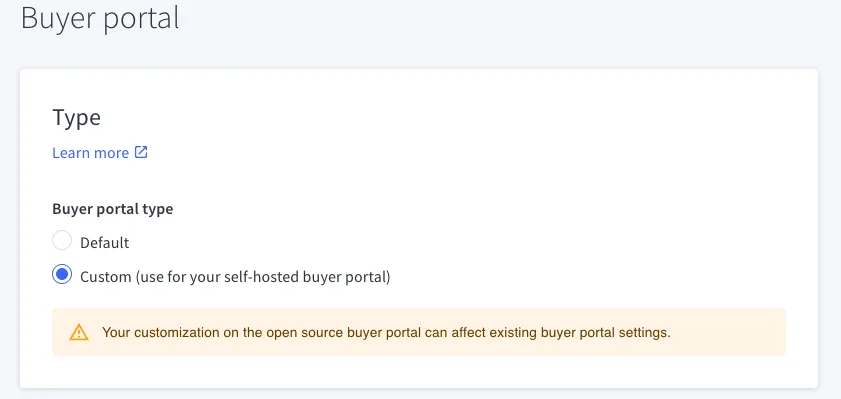
This setting prevents automatic updates to the hosted Buyer Portal from interfering with your custom scripts.
5. Verify the custom Buyer Portal. Navigate to your storefront and use the Network tab in your browser dev tools to watch for the loading of main.ts and verify it is loaded from your local server.
Your First Customization
With your local development server still running:
1. Modify the login form component. Open apps/storefront/src/pages/Login/LoginForm.tsx.
2. Locate the JSX. Within the component file, locate the LoginForm function that defines the component and find the return where the JSX begins. The beginning of the component JSX should look something like this:
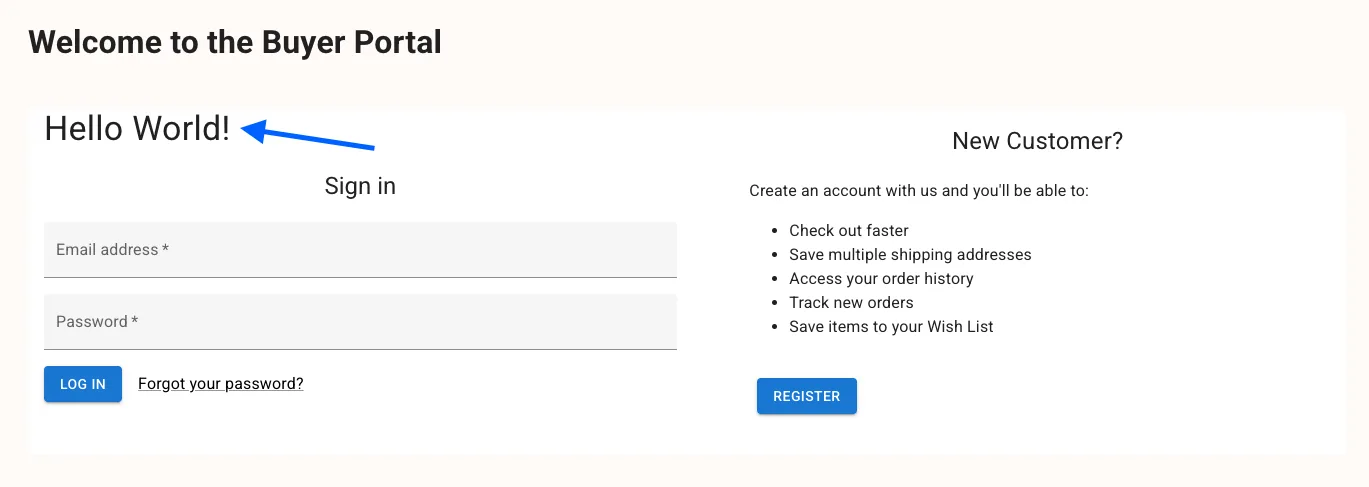
3. Add a “Hello World” heading. Add a Typography component just inside the Box component as shown:
4. Verify the change. Navigate to the “Sign In” page on your storefront to verify that your “Hello World” content appears.
Going to Production
When you’re ready to take your custom Buyer Portal to production, it’s time to build and deploy.
The build output of the Buyer Portal application consists purely of static files, and these can be deployed with any CDN. Your storefront scripts then need to be updated to load the Buyer Portal experience from the deployed build.
See the guide for detailed instructions. The general steps are as follows:
Determine the final base URL. Building the Buyer Portal requires knowing the base URL where your build files will ultimately be available. For example, if using your store’s WebDAV as discussed below, your base URL might be
https://{my-store}.com/content/b2b/. (Meaning that the deployed build files will include, for example,https://{my-store}.com/content/b2b/index.*.js.)Set production environment variables. Update .env in your Buyer Portal project with appropriate values for building. At minimum, this includes setting
VITE_IS_LOCAL_ENVIRONMENTtoFALSEand updatingVITE_ASSETS_ABSOLUTE_PATHwith your base URL.Build. Run yarn build, resulting in build files located in
apps/storefront/dist.Deploy. Upload the build files to your chosen CDN.
Reconfigure storefront scripts. Replace the header and footer scripts in Script Manager with the appropriate contents as detailed in the guide linked above.
Deploying with WebDAV
All BigCommerce stores have access to WebDAV storage suitable for hosting static files of various types. Rather than taking on the cost of an external CDN, using WebDAV to serve your custom Buyer Portal is a viable option. See the WebDAV knowledgebase article for details on configuration and use.
The final word
The default B2B Buyer Portal offers a rich user experience that serves a large segment of B2B shopping scenarios. For more bespoke needs, the open source nature of the Buyer Portal offers all the flexibility you need to tailor the B2B storefront experience to fit your needs. With this walkthrough, you’ve taken your first steps toward making the Buyer Portal your own!
Keep your eye on this space for more Buyer Portal tutorials that explore the tech stack and core concepts of this robust React application.
Build more than code. Build connections.
From edge cases to workarounds, learn from developers solving things in real time.