Start & build


Launch Services
Overview
Chart your path to success with specialized services.Implementation Project Management
Experts to ensure you launch on time and under budget.Solution Architecture
Seasoned advisors to help you best design your store.Data Migration & Optimization
Expertise on a clean and clear path to migrating your data.Enterprise Launch Package
Personal training on how to set up and launch your BigCommerce Store.

Professional Services Blog Series
Get to know our teams and how they support your success in this Q&A series.


Create your new website.
See if the BigCommerce platform is a good fit for your business.
No credit card required.

Written by
Rowan Stanek06/04/2026

Take control of your Apple Pay provider
Get The Print Version
Tired of scrolling? Download a PDF version for easier offline reading and sharing with coworkers.
A link to download the PDF will arrive in your inbox shortly.
Key highlights:
Pick your provider directly. A new dropdown lets you choose exactly which payment provider powers Apple Pay. No more auto-selection guesswork.
No disruptive workarounds. The old method of disabling providers and waiting to see what Apple Pay picked up is gone.
Zero downtime switching. Change providers on existing profiles without disrupting payment methods for shoppers.
Route funds strategically. Send Apple Pay volume to the provider with the best rates or right business-unit fit.
New and existing setups. The dropdown appears in both initial setup and existing profiles, showing only usable providers.
Until now, configuring Apple Pay on BigCommerce required the system automatically selecting the underlying provider for you, working through a fixed priority list to pick whichever enabled provider happened to come first. That could have been exactly the provider you wanted, but sometimes it was not.
Changing anything was a frustrating ordeal: you'd have to disable your current payment provider temporarily, and wait to see which provider Apple Pay picked up next. If that still wasn't right, you'd repeat the process. All of this while your store's available payment methods were disrupted for your shoppers.
We’ve just released a small but significant update that makes this process a whole lot easier.
What’s new?
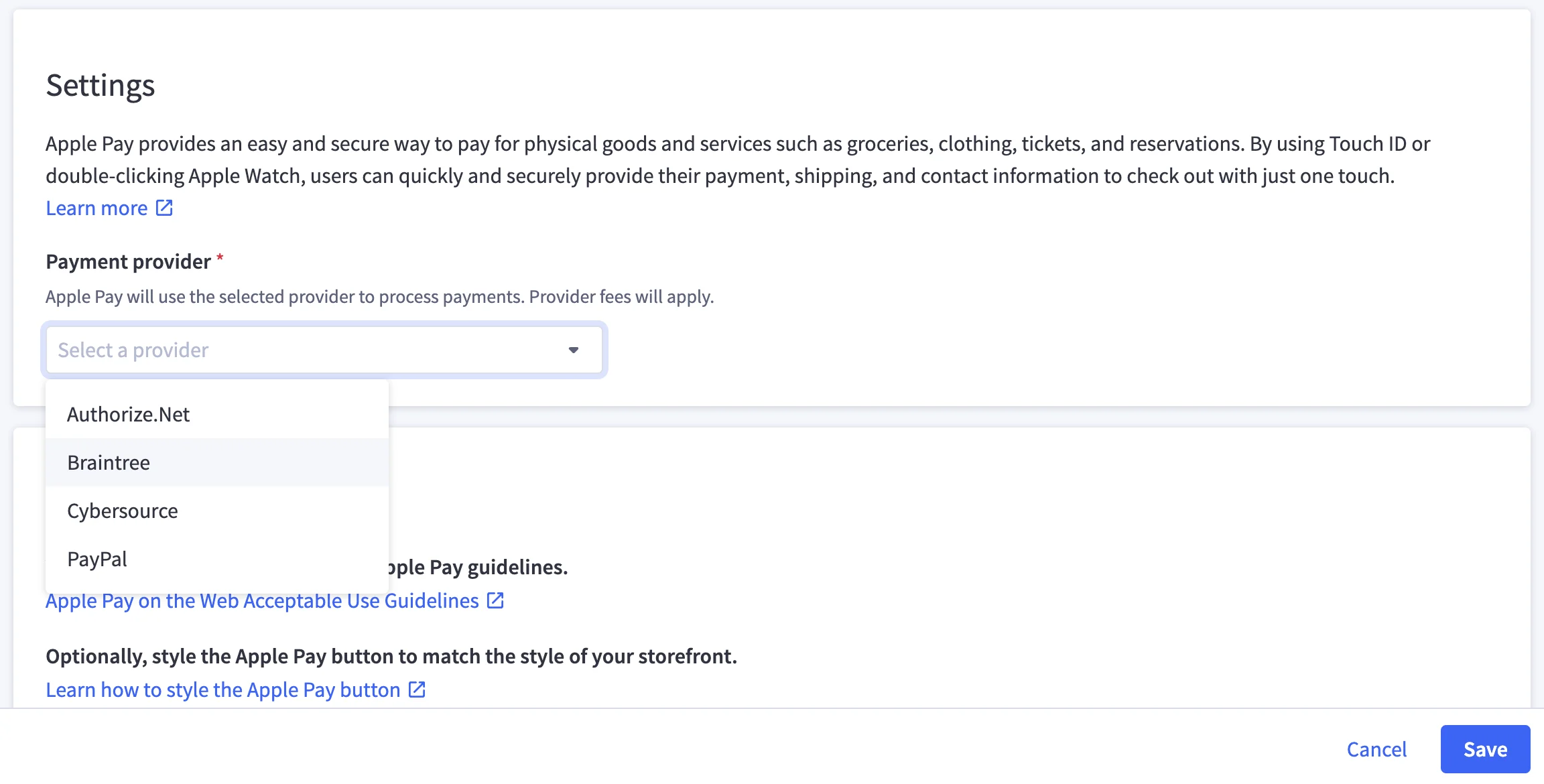
When creating or editing an Apple Pay profile, you'll now see a provider dropdown listing every payment provider enabled on your store that supports Apple Pay. Then you can simply pick the one you want – it's that simple.
What this means for you
If you're a business with an ecommerce store hosted on BigCommerce, this means you can now:
Route funds where you need: Direct Apple Pay volume to the provider with the best rates or the right fit for a specific business unit.
Change provider any time: Switch providers on existing profiles without disabling anything on your storefront; no payment method downtime.
Works for new and existing profiles
If you’re setting up Apple Pay for the first time, the provider dropdown is right there in the initial configuration flow. If you already have Apple Pay set up and want to switch providers, simply open your existing profile and you'll see the same dropdown. Select a different provider, and hit save.
The dropdown only shows providers that are both enabled on your store and support Apple Pay, so every option you see is one you can actually use.
This update is available now
Head to Settings → Payments → Digital Wallets → Apple Pay to review your existing configuration, or check out our Apple Pay setup guide here to learn how to configure Apple Pay on your store.
⏰ Isn't about time that you evaluated your ecommerce platform?
Request a demo to see how the BigCommerce platform is different.