Start & build


Launch Services
Overview
Chart your path to success with specialized services.Implementation Project Management
Experts to ensure you launch on time and under budget.Solution Architecture
Seasoned advisors to help you best design your store.Data Migration & Optimization
Expertise on a clean and clear path to migrating your data.Enterprise Launch Package
Personal training on how to set up and launch your BigCommerce Store.

Professional Services Blog Series
Get to know our teams and how they support your success in this Q&A series.


Put your best offers where shoppers actually see them: Introducing Featured Promotions

Create your store and start selling today.
Create your new website.
See if the BigCommerce platform is a good fit for your business.
No credit card required.

Written by
Just Way Koay08/04/2026
Put your best offers where shoppers actually see them: Introducing Featured Promotions
Get The Print Version
Tired of scrolling? Download a PDF version for easier offline reading and sharing with coworkers.
A link to download the PDF will arrive in your inbox shortly.
Key highlights
With the new BigCommerce Featured Promotions feature, spotlight automatic promotions directly on product listing and product detail pages with a short, merchant-written callout message.
Reach shoppers at the moment of decision, instead of revealing offers only in cart or at checkout.
Curate up to five featured promotions per store and control their storefront order from the Manage Priority page.
Featured promotions always combine with your other offers, and callouts stay in lockstep with your promotions, with no separate content workflow required.
Show the offer while shoppers are still browsing
Shoppers make their buying decisions on product pages, but automatic promotions have traditionally revealed themselves only in cart or at checkout, after the decision is already made. A discount that shoppers only discover at the end of the journey can't influence the start of it.
That is why we’ve introduced Featured Promotions within BigCommerce, a way to put your offers in front of shoppers before anything reaches the cart. You can now spotlight an automatic promotion directly on product listing and product detail pages with a short callout message that you write. This ensures shoppers see the offer at the exact moment they're sizing up the product.
What do Featured Promotions in BigCommerce do?
Not every promotion needs the spotlight, and that's the point. Before featuring your first offer, it helps to understand what changes when you feature a promotion, and what doesn't.
Think of your promotions like offers in a physical store:
A standard promotion is the discount shoppers find out about at the register, real savings but invisible while they browse the aisles.
A featured promotion is the sign in the shop window, working on shoppers before they've committed to anything.
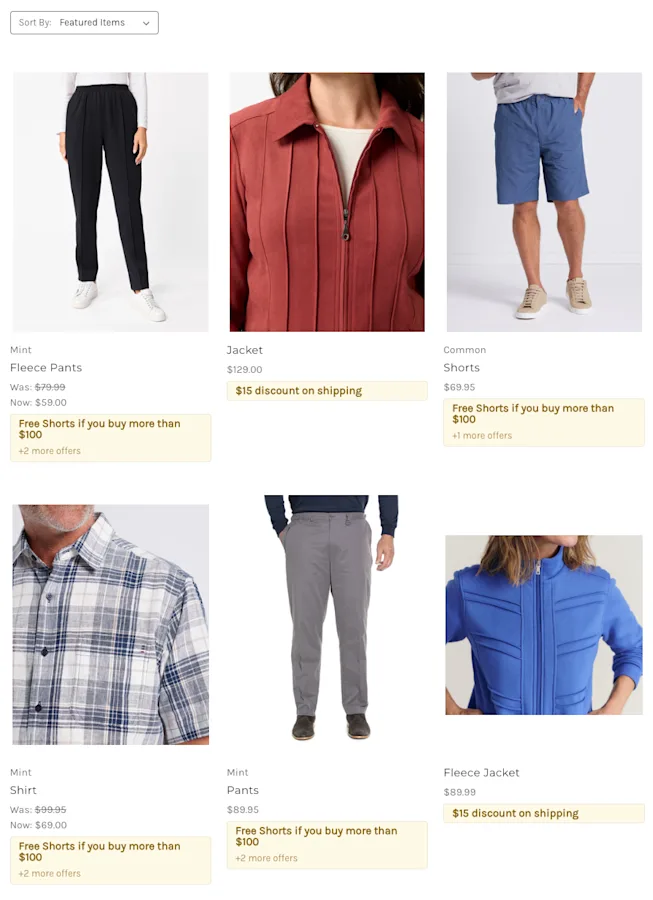
In practice, featured promotions are automatic promotions you've chosen to spotlight on the storefront. Each one carries a callout message, for example, "$8 off every T-shirt" and that message appears on the product cards and product pages of the items involved in the offer. Standard promotions are everything else, working exactly as they always have and applying automatically in cart without any storefront callout.
In other words, featuring a promotion doesn't change how it calculates or applies. It changes where shoppers learn about it.
Why Featured Promotions matter
Featured Promotions turn promotion visibility into a merchandising lever, unlocking multiple benefits:
Reach shoppers at the moment of decision.
Offers do their persuading on the product page, not as a pleasant surprise at checkout that arrives too late to change behavior. Shoppers weigh the discount alongside the product itself.
Picture a shopper comparing two similar products. A visible "$8 off every T-shirt" callout on one of them is often the nudge that settles it, and without featuring, that nudge never happens.
Turn visibility into a merchandising decision.
You decide which offers deserve storefront real estate and in what order. Promotion visibility becomes a deliberate choice rather than a side effect of your promotion setup.
Seasonal pushes, clearance events, and hero product launches can each take their turn in the spotlight. Switching between them takes nothing more than a checkbox and a callout.
Stack offers without shopper surprises.
Featured promotions always combine with your other promotions, so shoppers never lose a featured offer just because they also qualify for another offer. The combined savings total up in cart and checkout as usual.
That consistency builds trust: the offer a shopper reads while browsing is still there when they get to the cart.
Keep the storefront in lockstep with your offers.
No third-party badge app, no separate content workflow — the callout lives on the promotion itself. There's nothing to keep in sync, because there's only one thing to edit: change the promotion, and the storefront follows.
When a promotion ends or changes, its callout retires or updates on its own, so nothing stale is left behind to chase down. Banners still have their place for storewide campaigns and storytelling; featuring simply means an offer's visibility never depends on a banner.
Turning on a Featured Promotion.
How it works
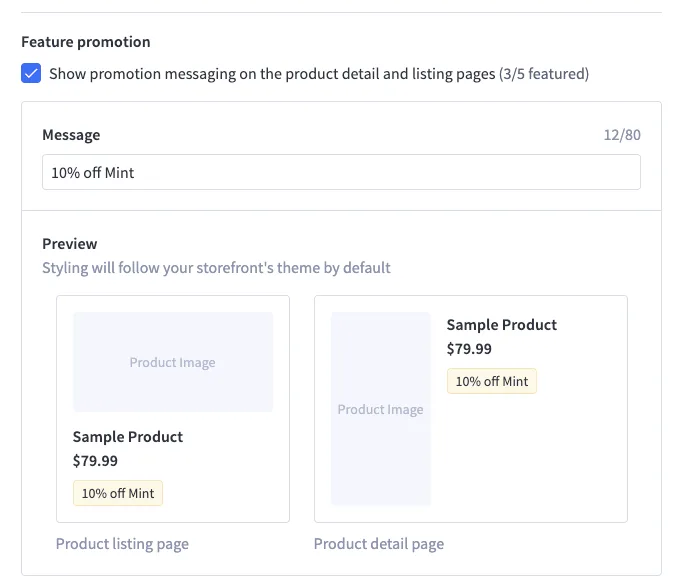
When creating or editing an automatic promotion, tick the Feature promotion checkbox and enter your callout message. That's it. If an existing promotion meets the criteria, you can feature it with the same edit. Each store can have up to five featured promotions.
Featured Promotions at a glance.
Configuration | What It Controls | Example |
Feature promotion checkbox | Whether an eligible automatic promotion is spotlighted on the storefront. | Tick it while creating or editing the promotion in the standard editor. |
Callout message | The short line shoppers see on product cards and product pages. Keep it under 80 characters so it reads at a glance.
| "$8 off every T-shirt"
The message is yours and isn't checked against the promotion's rules, so if the offer has conditions, write them in: "Buy 2, save 15%" tells shoppers exactly how to unlock the deal. |
Featured promotion limit | Each store can have up to five featured promotions, whether they're enabled or not. | Retire an existing featured promotion to make room for a new one. |
Manage Priority order | Which callout leads when several featured offers apply to the same product. | Drag featured promotions to reorder them within the Featured section. |
The Manage Priority page organizes promotions into Cart and Shipping tabs, each split into Featured and Standard sections. Because featured promotions always sit above standard promotions in your priority list, they're evaluated first. A promotion further down the list can never suppress a featured discount. The offer shoppers see is the offer that applies, and the priority interactions are the same ones you already use today. The order you set carries straight through to the storefront.

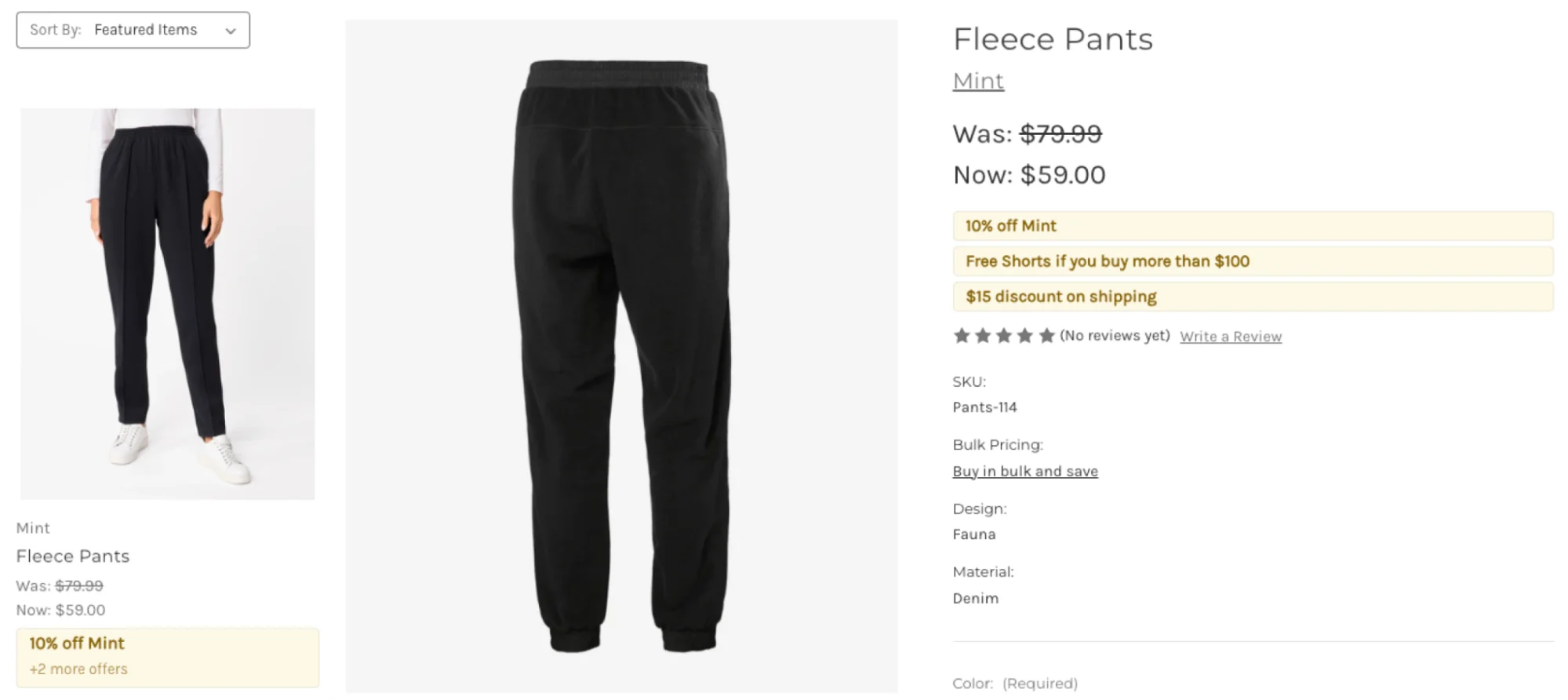

On a product listing page, each eligible product shows the callout from its highest-priority featured promotion; any further offers collapse behind a "+N offers" indicator rather than expanding in place. Shoppers see the full list on the product detail page, where every featured promotion that involves the product is listed beneath the price, in the order you set. Callouts appear on products used in either the conditions or the rewards of a featured promotion, so a "buy product X, get discounted shipping" offer surfaces on product X's page.
One timing note: storefront pages are cached to keep them fast. So, keep in mind that changes to a featured promotion such as a new callout, a priority reorder, or an offer being un-featured can take up to 10 minutes to appear on the storefront.
Getting your storefront ready
Because callouts render on your storefront, there's a one-time readiness step that depends on your storefront technology. Once it's done, every featured promotion appears on its own, with no per-promotion work.
Your storefront | What to do |
Default Cornerstone theme | Apply the latest theme update through Theme configuration in your control panel, and callouts start rendering. |
Customized Cornerstone theme | Have your developers make a one-time uplift, using the Cornerstone changes as a working reference. The relevant PRs are Cornerstone PR #2695 / PR #2702. |
Third-party Stencil themes | Your theme's developer needs to adopt the new changes first. Once they have, apply the latest update through Theme configuration; if you're not sure whether your theme supports Featured Promotions yet, reach out to its developer. |
Catalyst | Pull the latest Catalyst release into your customized storefront copy, following the steps to update your local Catalyst project in the versioning guide. |
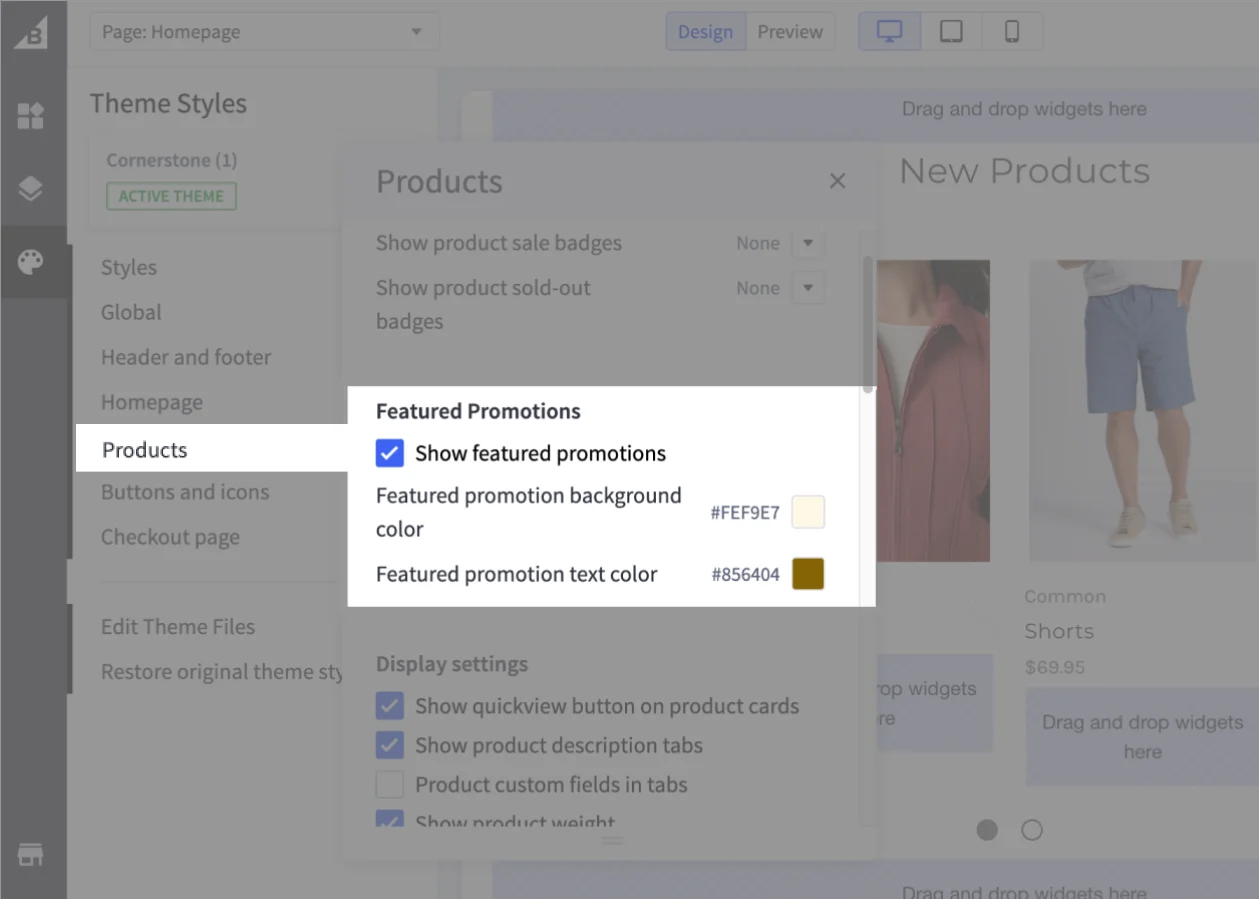
Readiness also comes with control. On Cornerstone and customized Stencil themes, Page Builder's Theme Styles gain a Featured Promotions group under Products: switch Show featured promotions on or off for your storefront (it's on by default once your theme is updated), and set the callout's background and text colors so offers sit naturally in your brand palette. No code required, and publish like any other theme style.
Sample use cases
The hero product isn't the only thing worth spotlighting. There are numerous ways to put featured promotions to work, including some of those found below.
Use Case | Setup | Outcome |
Hero product push | Feature a percentage discount on a flagship product. | The offer appears the moment the product does, putting your priority item's value front and center. |
Range-wide offer | A fixed amount off every product in a collection, featured with one callout. | The whole listing page communicates the offer without needing banners or manual content work. |
Sale amplification | Feature a promotion that includes items already on sale. | Layered savings become visible on the product page instead of surfacing only at checkout. |
Shipping incentive visibility | Feature a product-linked shipping discount, applied automatically. | Shoppers learn about the shipping deal before anything is in the cart. |
How shoppers see your featured promotion.
Planning your featured promotions
A few behaviors worth knowing as you plan your first featured promotions:
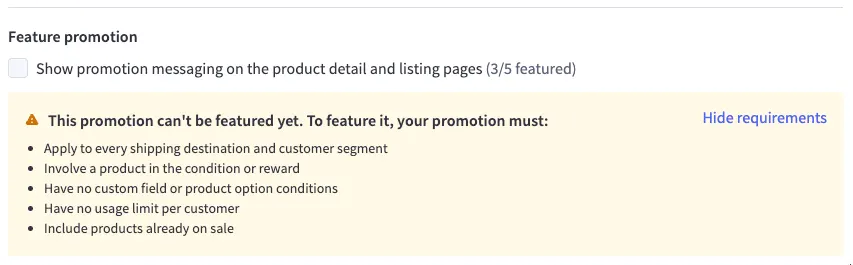
Automatic by design. Featuring is available for automatic promotions, so the offer a shopper sees is one they'll receive with no extra steps. Coupon promotions can't be featured at this stage.
Anchored to products. Featured promotions involve specific products in their conditions or rewards, which is what tells the storefront where to show the callout. A discount on the order subtotal alone has no product to anchor to.
Built to apply broadly. Featured promotions always allow stacking, carry no usage limits, and apply to all customer segments and shipping destinations, including items already on sale.
A shortlist of five. Each store can have up to five featured promotions in total, whether they're enabled or not. To make room for a new one, untick the ‘Feature promotion’ checkbox on one of the existing five (its callout message is cleared and the promotion keeps running as a standard promotion) or delete it outright.
The final word
Featured Promotions give your offers a place in the buyer journey where they can actually change the outcome: your best offers in the shop window, not waiting at the register.
Instead of hoping shoppers discover a discount in cart, choose your strongest offers, write the message, set the order, and let the storefront do the telling.
See Automatic and Coupon Promotions in the Help Center to learn more about configuring promotions with the standard editor.

Commerce built for momentum.
Get up to speed with new features that drive your business forward — from core capabilities to agentic commerce (and beyond).